Power BI and Power Automate: How to Turn Dashboards into Automated Business Workflows
Table of contents
- Quick Answer: What Is Data-Driven Automation?
- Key takeaways
- What Is Data-Driven Automation? (The Core Concepts)
- The simple definition
- The technical definition
- The business definition
- How Power BI and Power Automate Work Together
- 1. The detection layer (Power BI Service)
- 2. The orchestration layer (Microsoft Power Automate)
- 3. The execution layer (Line-of-Business Action APIs)
- Power BI + Power Automate Integration Architecture
- The architectural components:
- Step-by-Step Implementation: Building a Power BI Automation Workflow
- How to set up Power BI alerts
- 1. Build a single-value visual
- 2. Publish to the cloud service
- 3. Pin to a dashboard
- 4. Configure the alert threshold
- How to trigger Power Automate from Power BI
- 1. Launch the flow workspace
- 2. Select the native trigger
- 3. Link the analytics hook
- How to create automated workflows in Power BI
- 1. Parse the data payload
- 2. Inject conditional routing logic
- How to connect Power BI to a CRM or messaging app
- 1. Choose your destination connector
- 2. Map the API fields
- 3. Establish human-in-the-loop gates
- Real-World Power BI Automation Use Cases
- 1. Customer churn prevention (Sales & Account Management)
- 2. Inventory reorder automation (Supply Chain & Logistics)
- 3. Financial risk alerts (Procurement & Controlling)
- 4. SLA breach notifications (Customer Operations)
- 5. Sales pipeline acceleration (Commercial Operations)
- 6. HR onboarding automation (Human Resources & Corporate IT)
- Power BI vs. Power Automate: Functional Boundaries
- Manual dashboards vs. automated workflows: the strategic trade-off
- Limitations of Power BI Automation
- Troubleshooting Common Issues in Power BI Automation
- Why Power BI data alerts fail to trigger
- Power Automate cloud flow not firing
- Managing data refresh latency delays
- Preventing duplicate trigger loops
- Connector authentication timeouts
- Best Practices for Power BI Automation
- Frequently Asked Questions
- Strategic Direction: Partner with Emerline for Data-Driven Automation
For mid-market companies, business intelligence (BI) is often trapped in a cycle of passive consumption. Traditional data stacks operate like a rear-view mirror: data is collected, cleaned, staged in a data warehouse, and mapped onto a chart. Executives and operations managers must manually log in, scan dashboards, locate operational anomalies, and then switch to a separate operational tool to execute a change.
This structural disconnect creates dashboard fatigue and delayed operational execution. When a critical business threshold is crossed, relying on a human to manually spot the variance, analyze the graph, and initiate a fix introduces systemic delay.
To bridge this gap, progressive data architectures are transitioning to data-driven automation using business intelligence automation. By combining the metric detection power of the Power BI service with the programmatic execution capabilities of Microsoft Power Automate workflows, companies can transform passive analytical insight into real-time, event-driven business workflows.
Quick Answer: What Is Data-Driven Automation?
Data-driven automation is the architecture of connecting analytics engines to cloud workflow orchestration platforms to automatically execute programmatic business actions the moment key performance indicators (KPIs) cross defined operational thresholds.
It eliminates manual data monitoring by linking native Power BI data alerts to automated actions within Power Automate workflows. The moment an anomaly or threshold breach is detected during a scheduled dataset refresh, the platform skips manual reporting loops and instantly routes actionable tasks to a CRM, adjusts ERP logs, or alerts operations teams without requiring a human to ever open a dashboard.
Key takeaways
- Eradicate manual monitoring: Shift the burden of monitoring data anomalies from operational staff to your automated data stack, minimizing information overload.
- Reduce operational latency: Eliminate the time gap between a KPI variance occurring in your cloud database and a corrective action being executed across your enterprise applications.
- Minimize process friction: Replace manual, cross-system "copy-paste" routines with seamless API handshakes that update CRMs, ERPs, and internal messaging channels natively.
- Enforce process accountability: Ensure every operational exception automatically generates an audited, assigned, and trackable task within your core line-of-business systems.
What Is Data-Driven Automation? (The Core Concepts)
To build absolute topical authority over business intelligence automation, organizations must understand this architectural concept across three distinct corporate operational layers:
The simple definition
Data-driven automation means letting your data monitor itself. Instead of having a manager log in daily to check if sales are down or inventory is low, the reporting software watches the metrics in the background and sends out an active task or notification only when something goes wrong.
The technical definition
From a system perspective, data-driven automation is an event-driven integration pattern. It leverages an analytics platform (Power BI) as a continuous detection engine that evaluates data schemas during refresh events. When a metric breaches a defined boundary, it broadcasts an asynchronous webhook notification containing a structured JSON data payload to an orchestration engine (Power Automate), which executes remote procedure calls across third-party software APIs.
The business definition
For mid-market enterprises, data-driven automation is a framework for protecting gross margins and accelerating operational velocity. It converts raw technical data assets into automated cost-containment shields, ensuring that business anomalies—such as supply chain delays, SLA breaches, or budget overruns—are intercepted and resolved programmatically before they impact corporate profitability.
How Power BI and Power Automate Work Together
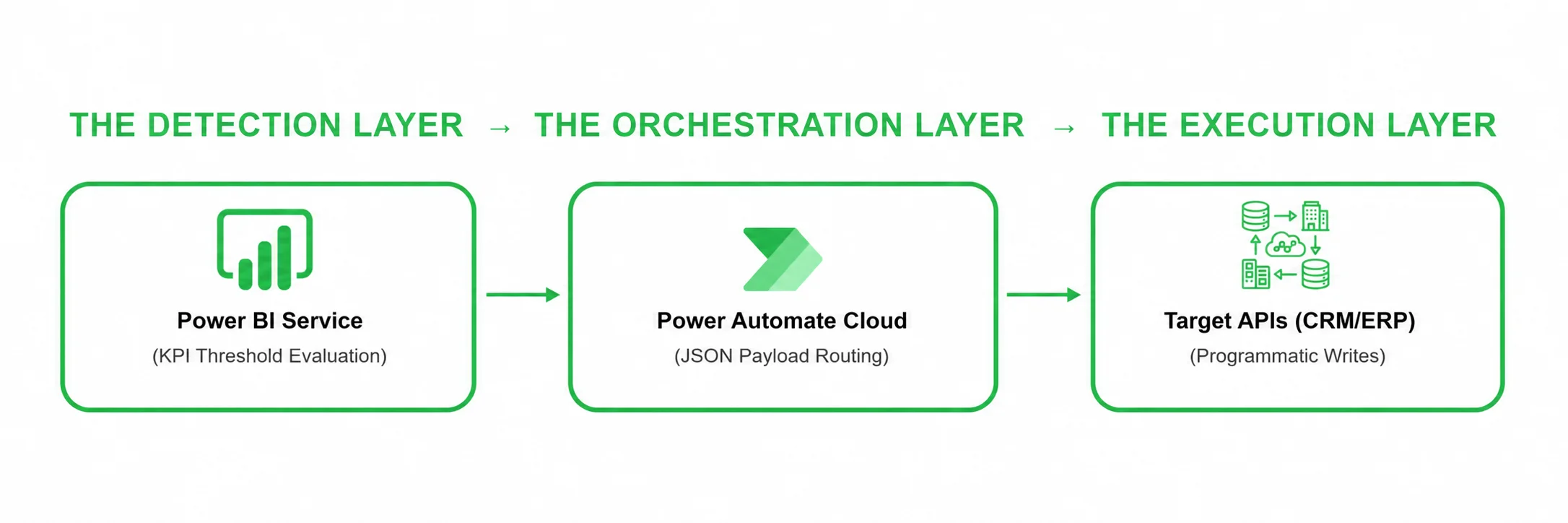
The Power BI Power Automate integration functions as a unified, close-loop operations system. Rather than working as isolated platforms, they split responsibilities across three distinct operational layers:
1. The detection layer (Power BI Service)
Power BI acts as the centralized system of record and monitoring hub. It continuously runs scheduled ingestion refreshes over enterprise data models. While users go about their day, the Power BI Service runs background calculations on complex DAX measures, checking active data rows against predefined operational constraints pinned to dashboard tiles.
2. The orchestration layer (Microsoft Power Automate)
Power Automate serves as the intelligent workflow router. It does not actively process big data tables; instead, it listens for a targeted webhook flag from Power BI. The moment a data alert is received, Power Automate takes the payload, decrypts the session parameters, runs conditional evaluation branches (e.g., If Tenant = A, route to Salesforce; If Tenant = B, route to HubSpot), and handles authentication handshakes.
3. The execution layer (Line-of-Business Action APIs)
This layer represents your active operational software stack. Driven by Power Automate’s ecosystem of over 700 cloud connectors, this tier carries out the physical business tasks—writing database rows, updating ERP logs, locking credit limits, or posting interactive cards inside collaboration channels.
Power BI + Power Automate Integration Architecture
Building an enterprise-grade automated workflow requires a clear understanding of the data lifecycle as it moves from raw storage endpoints out to external execution targets.
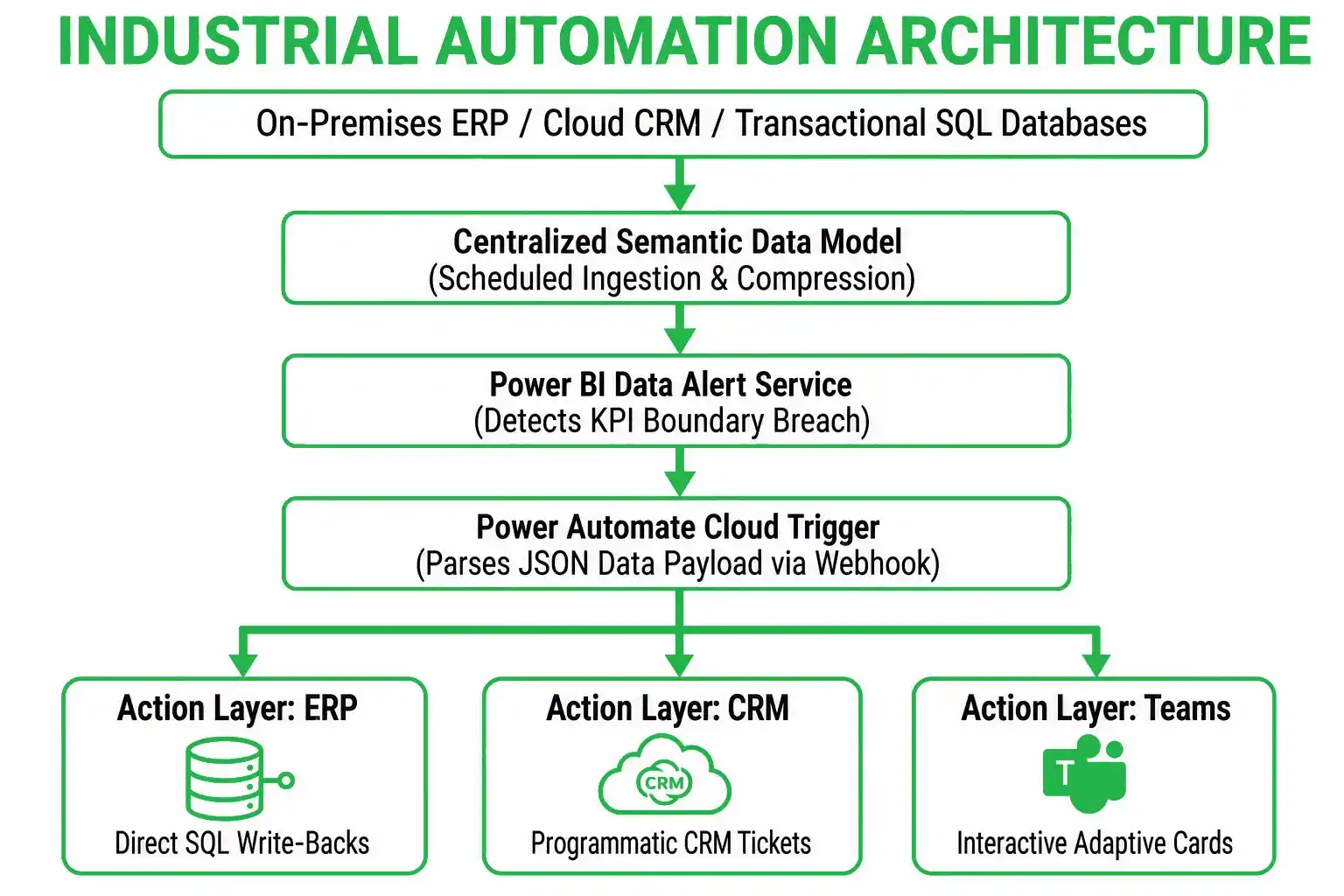
The architectural components:
- The ingestion base: Operational transaction logs populate inside your system of record (e.g., PostgreSQL database, cloud CRM, or local ERP software).
- The semantic cache: Power BI or Microsoft Fabric capacities ingest and compress these raw tables, compiling records into clean, star-schema semantic data models.
- The alert trigger: A native Power BI data alert watches a single-value dashboard tile. When a threshold is breached, it maps data fields into a structured JSON string.
- The workflow payload: Power Automate catches the alert using an asynchronous webhook container, extracts individual parameters, and provisions transient API tokens to communicate safely with downstream systems.
Step-by-Step Implementation: Building a Power BI Automation Workflow
Building a stable, data-driven automated cloud workflow follows a structured engineering path within the Microsoft Power Platform ecosystem:
How to set up Power BI alerts
1. Build a single-value visual
Because Power BI data alerts can only be assigned to card-based tiles, you must open Power BI Desktop and create a clean Card visual that outputs your target metric (e.g., Total Overdue Invoices).
2. Publish to the cloud service
Deploy your report directly to a secure workspace inside the Power BI Service.
3. Pin to a dashboard
Open the report in your browser, hover over the card visual, select Pin visual, and attach it to an active Dashboard (alerts will not trigger from standard report sheets).
4. Configure the alert threshold
Navigate to the dashboard, click the ellipsis (...) on your card tile, select Manage alerts, and click Add alert rule. Define your rule parameters (e.g., Trigger if Overdue Invoices > 50) and set the notification frequency.
How to trigger Power Automate from Power BI
1. Launch the flow workspace
Open the Power Automate portal (make.powerautomate.com) and select Create > Automated cloud flow.
2. Select the native trigger
Search for and select the native Power BI trigger: "When a data driven alert is triggered".
3. Link the analytics hook
Authenticate the connection using your developer credentials. Select your specific Alert ID from the drop-down menu to map your semantic model straight to the cloud workflow engine.
How to create automated workflows in Power BI
1. Parse the data payload
Add an operational step directly below your trigger. Power Automate automatically unpacks the incoming dataset variables, making parameters like Alert Title, Metric Value, and Report URL accessible as dynamic content blocks.
2. Inject conditional routing logic
Add a Condition control step to filter your operational paths based on incoming data values (e.g., If Metric Value > 100, execute immediate manager escalation; else, route to standard queue).
How to connect Power BI to a CRM or messaging app
1. Choose your destination connector
Add a new action block and locate your business application (e.g., Salesforce, HubSpot, or Microsoft Teams).
2. Map the API fields
Select an action like Salesforce "Create record" or Teams "Post adaptive card". Use the dynamic content blocks extracted from your Power BI alert to automatically populate target descriptions, assign case owners, and map customer IDs.
3. Establish human-in-the-loop gates
For automated tasks that impact external clients (such as sending past-due notices), insert an Approvals connector step right before the final API execution. The flow will pause, pushing an approve/reject option to management via Teams. The final CRM write or external communication executes only after explicit human validation.
Real-World Power BI Automation Use Cases
Deploying reactive business intelligence workflows optimizes operational efficiency across diverse corporate departments.
1. Customer churn prevention (Sales & Account Management)
- The trigger: A customer health score measure inside a Power BI model drops by more than 20% over a rolling 14-day window.
- The action: Power Automate hooks into your CRM API, automatically creates a high-priority retention ticket, and assigns it to the designated account lead.
- The outcome: Customer success teams engage at-risk clients immediately, resolving contract friction before a customer decides to churn.
2. Inventory reorder automation (Supply Chain & Logistics)
- The trigger: An enterprise inventory dashboard flags that available warehouse stock for a high-demand SKU has fallen below defined safety margins.
- The action: The automated flow queries supplier schemas and transmits a formatted purchase order request straight into your ERP platform (e.g., SAP or Dynamics 365).
- The outcome: Supply chains remain fully stocked, completely eliminating manual data entry delays and avoiding unexpected stockouts.
3. Financial risk alerts (Procurement & Controlling)
- The trigger: A corporate expense monitoring dataset tracks an operational project's budget spend passing 90% of its total cost threshold ahead of schedule.
- The action: The flow locks down localized auxiliary budget approvals via the procurement API and alerts the financial director via an interactive message.
- The outcome: Financial controllers eliminate unexpected project overruns, keeping corporate margins protected.
4. SLA breach notifications (Customer Operations)
- The trigger: A customer service dataset flags that unresolved high-priority technical support tickets have spent 4 hours in queue, approaching contractual limits.
- The action: Power Automate pushes an escalated alert card into the support leadership channel inside Slack or Teams, including direct links to the cases.
- The outcome: Operations managers rapidly deploy resources to close critical requests, avoiding contract penalties and maintaining client satisfaction.
5. Sales pipeline acceleration (Commercial Operations)
- The trigger: A commercial CRM dataset flags that a high-value sales deal (>$100,000$) has remained stuck in the "Proposal Sent" phase for 10 consecutive business days.
- The action: Power Automate triggers a background lookup, pulls the client's recent website interaction history, and assigns an automated follow-up challenge to the sales director.
- The outcome: Sales velocity increases by systematically preventing high-value opportunities from stalling out in the pipeline.
6. HR onboarding automation (Human Resources & Corporate IT)
- The trigger: A corporate HR database flags a new candidate record transitioning to "Contract Signed" status inside the talent acquisition model.
- The action: The cloud flow instructs Microsoft Graph APIs to provision corporate email credentials, logs a hardware shipment request inside the IT inventory app, and schedules orientation sessions.
- The outcome: Administrative onboarding overhead drops significantly, ensuring new hires are fully provisioned on day one.
Power BI vs. Power Automate: Functional Boundaries
- Power BI is an analytical & aggregation engine. It is built to pull millions of historical rows from disparate databases, compress them into memory, and evaluate complex multi-table mathematical metrics (DAX). It cannot write records or orchestrate applications.
- Power Automate is a transactional & logical router. It is built to react to single, real-time events, process thin JSON strings, manage API tokens, and run row-by-row operations across cloud apps. It cannot process massive analytical tables.
Manual dashboards vs. automated workflows: the strategic trade-off
| Operational Dimension | Manual BI Reporting & Dashboards | Automated Workflows & Reactive BI |
| Operational Execution Speed | Slow. Limited by when a user chooses to log in and look at reports. | Sub-second. Triggers run automatically during data model refreshes. |
| Scalability Limitations | Low. As report counts grow, staff develop dashboard fatigue. | High. The data stack runs background checks across thousands of KPIs. |
| Data Integrity Risk Profile | High risk of manual entry errors when copying metrics between apps. | Zero risk. Cloud API connectors map fields directly between endpoints. |
| Primary Structural Profile | Comprehensive data discovery, pattern identification, and strategy. | Exception-based management, operational alerting, and automation. |
Limitations of Power BI Automation
While combining Power BI and Power Automate creates an exceptionally agile architecture, enterprise architects must design systems around the platform's native boundaries:
- Refresh latency dependencies: Power BI alerts are not real-time streaming triggers by default; they evaluate rules only when the underlying dataset finishes refreshing. If your workspace runs on standard Power BI Pro licensing (limited to 8 scheduled refreshes a day), your automated workflows will operate on a corresponding batch latency window.
- Single-value visualization constraints: Data alert rules can only be bound to single-value card visuals, KPI tiles, and gauges. You cannot assign automated triggers directly to rows within a standard matrix table or points on a line chart.
- Capacity metric throttling: If an enterprise data model is unoptimized, running frequent dataset refreshes to drive real-time automation will exhaust your dedicated Power BI Premium or Microsoft Fabric Capacity Units (CUs), triggering automatic platform throttling.
- Connector output limits: Standard Power Automate flows face strict API call limits and throttling thresholds determined by your Microsoft 365 license tier. High-frequency loops that trigger thousands of automated tasks an hour risk exceeding endpoint limits, causing temporary flow suspensions.
Troubleshooting Common Issues in Power BI Automation
When engineering cross-platform automated workflows, production configurations frequently encounter specific deployment roadblocks. Here is how to diagnose and fix them:
Why Power BI data alerts fail to trigger
- The root cause: The alert rule was configured on a standard report sheet visual, or the underlying dataset refresh failed entirely.
- The fix: Ensure the target visual is a single-value Card, KPI, or Gauge. You must explicitly Pin the visual to a Dashboard, as Power BI data alerts only run calculations on dashboard tiles. Verify your dataset's refresh logs to confirm the background update completed successfully.
Power Automate cloud flow not firing
- The root cause: The Power Automate service account lacks explicit read permissions to the workspace hosting the Power BI alert, or your connection tokens have expired.
- The fix: Open your cloud flow workspace, navigate to the Connections tab, and re-authenticate your Power BI connector credentials. Confirm that the Service Principal or account running the flow is listed as an Admin or Member within the target Power BI app workspace.
Managing data refresh latency delays
- The root cause: The data model is too large, causing backend refresh schedules to lag behind operational demands.
- The fix: Shift critical automated KPIs onto a dedicated Microsoft Fabric Capacity running DirectLake mode. DirectLake reads open-standard Delta Parquet tables straight from OneLake at memory speeds, completely bypassing traditional, long-running import data refresh loops.
Preventing duplicate trigger loops
- The root cause: A fluctuating metric repeatedly crosses your threshold limit during a single day, or your data alert rule is set to "Manage alerts: Most every 1 hour" over a rapidly updating dataset.
- The fix: Update the Power BI alert parameters to enforce a strict notification ceiling (e.g., At most once every 24 hours). Alternatively, implement an Unshare variable array or a check-state step inside Power Automate to verify if a CRM ticket is already open for that specific ID before executing a new API write.
Connector authentication timeouts
- The root cause: Hardcoded user passwords inside Power Automate actions break during mandatory corporate password rotations, stalling the automation pipeline.
- The fix: Decommission individual user accounts within production pipelines. Transition your Power Automate custom connectors to leverage secure App Registrations and Client Secrets with Entra ID, ensuring automated authentication handles token cycles without human intervention.
Best Practices for Power BI Automation
- Calibrate conservative threshold rules: Set your data alert boundaries safely outside normal business variations. If alerts trigger constantly for minor, non-critical fluctuations, your operations team will develop alert fatigue and begin ignoring system tasks.
- Maintain lookup ID consistency: To guarantee that data parameters map flawlessly as they travel between systems, ensure your data teams enforce consistent master lookup keys (such as unified CustomerID or SKUNumber syntax) across all database, CRM, and ERP tables.
- Configure cloud flow retry logic: Production APIs can experience temporary network timeouts. Open the settings panel on your Power Automate action blocks and change the configuration from "Default" to a Fixed Interval Retry Policy (e.g., Attempt 3 retries spaced 10 seconds apart) to handle transient dropouts cleanly.
- Insert human approval gates: For automated tasks that commit financial changes or message external suppliers, always incorporate a mandatory Approvals step directly ahead of the final API call. The workflow will hold safely until an operational manager clicks an "Approve" card within Teams or Outlook.
Frequently Asked Questions
Can Power BI trigger workflows automatically?
Yes. By deploying data alert rules over single-value dashboard tiles, the Power BI Service can instantly trigger background Power Automate cloud flows the moment a calculated business KPI crosses a defined operational safety boundary.
Is Power BI real-time automation possible?
Yes, near real-time automation is possible. While standard Pro configurations depend on scheduled batch refresh windows, moving your semantic architecture to Microsoft Fabric capacities using DirectLake mode or deploying native Power BI Streaming Datasets enables immediate threshold evaluations and automated triggers.
What is Power Automate used for with Power BI?
Power Automate serves as the programmatic execution engine for Power BI. It catches data alerts and dynamic JSON payloads generated by your analytical models, translates those variables into programmatic commands, and uses cloud connectors to drive automated actions across external software applications.
Can Power BI update external systems?
Natively, Power BI is a read-only reporting and visualization engine. However, by routing data metrics out through a Power Automate integration layer, your data stack can run secure SQL queries, write database rows, adjust CRM tasks, and modify settings inside external systems.
What are Power BI data alerts limitations?
Power BI data alerts can only be assigned to single-value visuals (Cards, KPIs, and Gauges) that have been explicitly pinned to a Power BI Dashboard. They do not calculate changes on standard report sheets and can only evaluate numeric data types, meaning text-based columns are unsupported.
Is Power BI good for workflow automation?
Power BI functions as an exceptional anomaly and exception detection engine. It possesses the computational power to evaluate complex cross-table business metrics that standard automation platforms cannot parse, passing refined operational triggers down to Power Automate for final workflow execution.
Strategic Direction: Partner with Emerline for Data-Driven Automation
Transitioning your enterprise from a passive data consumption framework to an active, automated business workflow model requires an analytical partner who understands the underlying mechanics of modern cloud engineering. Beautiful reporting charts are structurally valuable only if they trigger clear, well-timed business actions. Designing reliable, production-grade automated workflows demands deep expertise across advanced relational data modeling, secure cross-vendor API integrations, and robust process governance. Minor architectural design oversights can result in missed alerts, duplicate task generation, or broken connection states that can impact daily operational stability.
As an established global technology partner and Microsoft Solutions Partner with deep specialized capabilities across the Microsoft ecosystem, Emerline helps organizations turn passive reporting layers into an active, self-healing competitive advantage. We look past basic visualization tools to align your data core with your day-to-day business processes, protecting your operational margins and optimizing staff efficiency.
Our elite data engineering services team works directly with your operational leadership to audit legacy analytical roadblocks, connect siloed cloud systems, and deploy scalable Microsoft Fabric and Power Platform architectures built to match your real-world business velocity.
Contact our enterprise automation architects today to arrange a comprehensive technical evaluation of your business intelligence environment, eliminate operational technical debt, and transform your business into a high-performance, automated modern data estate.
Published on Jun 29, 2026